
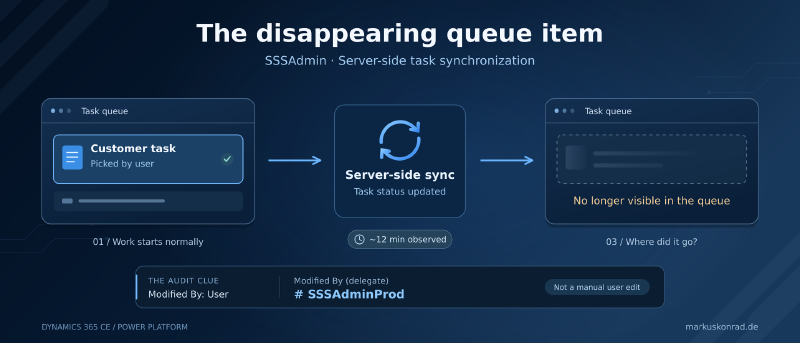
Queue items disappearing after about 12 minutes#
A recent production issue introduced me to a system identity worth knowing: SSSAdmin, or more precisely, # SSSAdminProd.
The report from the users sounded strange. A task had been added to a queue. A user picked the queue item and started working on it. Around 12 minutes later, the item disappeared from the queue without the user intentionally removing it.
Not immediately after picking it. Not after an obvious manual action. Just gone a little later.
The underlying task’s status had been updated automatically. That status change caused the queue item to disappear from the users’ queue. The initial audit check was misleading: Modified By still showed the current user, even though that user had not made the change manually.
The useful clue was in another field:
| Field | Value in this incident |
|---|---|
| Modified By | The current user |
| Modified By (delegate) | # SSSAdminProd |
That pointed the investigation towards server-side synchronization, where task synchronization was enabled. It was the sync process updating the task status, not a mysterious click by the user.
What is SSSAdminProd?#
Microsoft introduced # SSSAdminProd as the identity used by server-side synchronization to communicate with Dataverse. The published transition plan listed November 2025 through March 2026. It takes over that role from SYSTEM, but it is not a general replacement for the SYSTEM user: Microsoft explicitly retains SYSTEM for some key server-side sync operations for backward compatibility.[1]
In the Power Platform environment, the identity can be identified by these values:[2]
| Property | Value |
|---|---|
| Display name | # SSSAdminProd |
| User name | SSSAdminProd@onmicrosoft.com |
| Purpose | Server-side sync integration with Dataverse |
| Security role listed by Microsoft | System admin |
Microsoft notes that many system-provided users are hidden from normal user views; an Advanced Find query on the Users table can help locate them.[2]
Finding this account is not, by itself, evidence of a problem. It is a Microsoft-managed service identity, not an administrator account someone in the project created. Do not disable it, delete it, or change its security roles.[1][2]
Why Modified By still looked like the user#
The identity change makes the delegate fields particularly useful for troubleshooting. Microsoft documents that server-side sync can populate Created By (delegate) and Modified By (delegate) with # SSSAdminProd, while Created By and Modified By remain unchanged.[1]
Microsoft even provides a task example: server-side sync tracks a task while impersonating the actual user. The task’s Created By and Modified By values show that user, while the delegate fields show # SSSAdminProd.[1]
In our incident, looking only at Modified By made the automatic status update look like a user action. Looking at Modified By (delegate) exposed the service acting on that user’s behalf.
When a user says, “I did not change that task,” check the delegate field before assuming the audit information contradicts them.
The new identity helped explain who performed the operation. Its presence does not establish that Microsoft’s identity transition introduced the task-status problem.
The connection to task synchronization#
Server-side synchronization is not just email transport. With Exchange, it also supports bidirectional synchronization of appointments, contacts, and tasks.[3][4]
For this production incident, the relevant chain was:
- A task existed as an item in a queue.
- A user picked that queue item.
- Server-side synchronization, with task sync enabled, later updated the task status.
- The queue item disappeared from the queue as a consequence of that status change.
- Modified By showed the user; Modified By (delegate) revealed
# SSSAdminProd.
The approximately 12-minute delay was an observation in this environment, not a fixed timeout after picking an item. Microsoft documents a delay of 5–12 minutes after an appointments, contacts, and tasks sync cycle, or 5–15 minutes when incoming email is also enabled. Processing time and other factors can add to the elapsed time; there is no defined SLA for a complete sync cycle.[3]
Also, a task being in a queue does not mean that the queue’s mailbox is synchronizing it. Microsoft states that queue mailboxes do not support appointment, contact, or task sync. Investigate the affected user’s mailbox and synchronization filters instead.[4]
What I would check in a similar incident#
Start with one affected task and its queue item rather than changing organization-wide settings.
- Build a timeline. Capture when the item was picked, when the task status changed, and when the item stopped appearing in the queue.
- Inspect both identities. Compare Modified By and Modified By (delegate) on the task. Include Created By and Created By (delegate) when investigating record creation.
- Check the actual status transition. Record the old and new task status and status reason. Do not assume every disappearance means the task was completed.
- Distinguish disappearance from deletion. Check whether the task and queue-item records still exist, whether the queue-item state changed, and whether the view now filters the item out. A missing row in a queue view is not proof that the underlying task was deleted.
- Review the user’s sync configuration. Check the user’s mailbox setting for Appointments, Contacts, and Tasks, the task synchronization filters, and the corresponding Exchange task. Synchronization is bidirectional once the records are linked.[4]
- Review downstream automation. Inspect flows, workflows, and plug-ins triggered by task-status changes, and the queue view’s filters. Establish how the status update leads to the visible disappearance in that environment.
If these operational tasks should not be synchronized with Exchange, review the task synchronization filters and test a narrower scope in a non-production environment first. Filters determine which Dynamics 365 records are synchronized; changing them also has consequences for records that were already linked to Exchange.[4]
If considering None for the mailbox’s Appointments, Contacts, and Tasks setting, remember that this is a combined workload setting, not a task-only switch. Confirm the impact on appointment and contact synchronization before making that change.[4]
These are investigation and mitigation options, not a claim that one configuration change has already been tested as the final fix for this incident. The confirmed finding here was the task-status update through server-side synchronization with task sync enabled.
Why you may also see SSSAdminProd creating contacts#
The same identity can appear around contact creation. Microsoft’s identity-transition examples show synchronous workflows and plug-ins creating contacts during server-side sync operations, with # SSSAdminProd recorded in Created By (delegate).[1]
There is also a separate ownership scenario: Microsoft documents # SSSAdminProd appearing as the owner or modifier of records created through Automatic Record Creation (ARC) rules, including contacts created for unknown email senders. In that situation, review the ARC rule and associated flow ownership; Microsoft’s resolution is to reassign the affected ARC rule to an appropriate user or service account with the required privileges, then save and publish it.[5]
Do not confuse these two cases: a service identity in a delegate field is not the same as that identity owning the contact. Neither should be fixed by modifying the Microsoft-managed account itself.[1][2]
Takeaway#
For us, SSSAdminProd was the clue that connected apparently manual task updates to a background synchronization process.
If queue items disappear “magically” a few minutes after being picked, check the task status, the affected user’s task synchronization, and Modified By (delegate) together.
Use the identity as a diagnostic clue, not as a hard-coded condition in a plug-in or flow. Microsoft explicitly warns that this identity can change again and recommends depending on publicly documented behavior instead.[1]
Hope this helps,
Cheers!
Sources#
[2] https://learn.microsoft.com/en-us/power-platform/admin/system-application-users
[3] https://learn.microsoft.com/en-us/power-platform/admin/server-side-synchronization
[4] https://learn.microsoft.com/en-us/power-platform/admin/sync-logic